
What Send to Kindle accepts
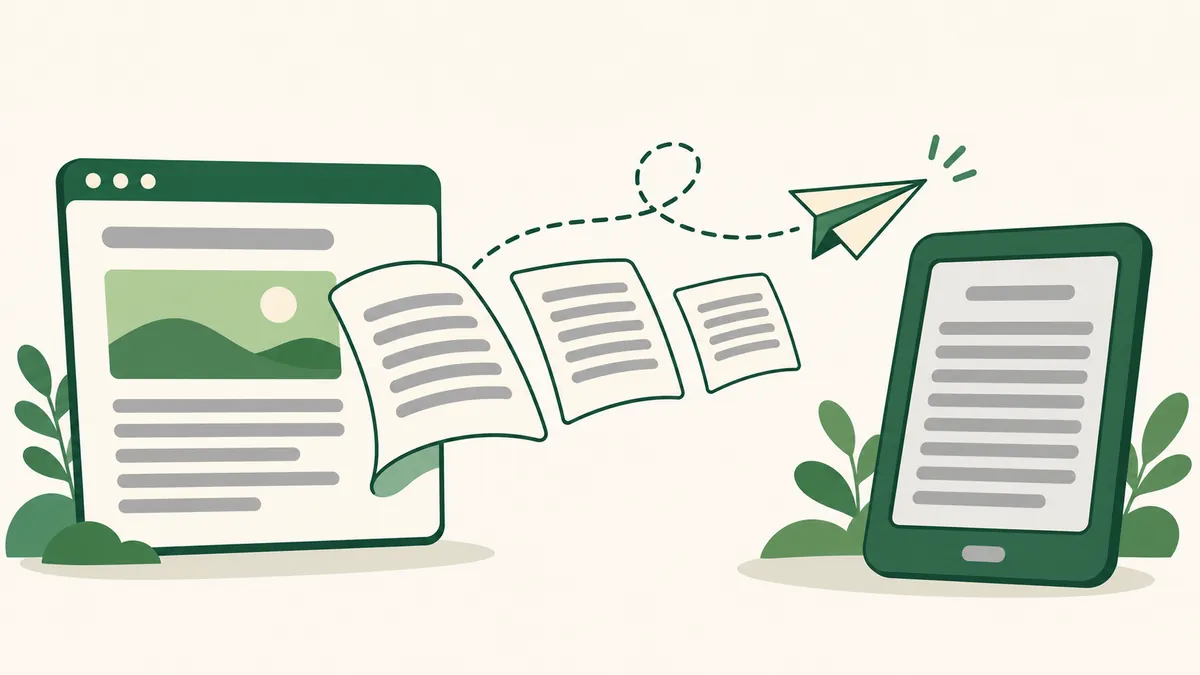
Send to Kindle is Amazon's free service for personal documents. It currently accepts EPUB, PDF, Word (DOC, DOCX), TXT, RTF, HTML and common image files. EPUB is the best choice for articles: Amazon converts it into a Kindle book with reflowable text, so you can change the font and size. MOBI is no longer accepted for new documents — if an old guide tells you to make a MOBI file, make an EPUB instead.
A plain webpage link can't be sent on its own; Send to Kindle needs a file. That's where a converter helps: it keeps only the article text and images, drops menus and ads, and lets you put several articles into one book.
Step 1: turn the webpage into an EPUB
- Copy the address of the article from your browser's address bar.
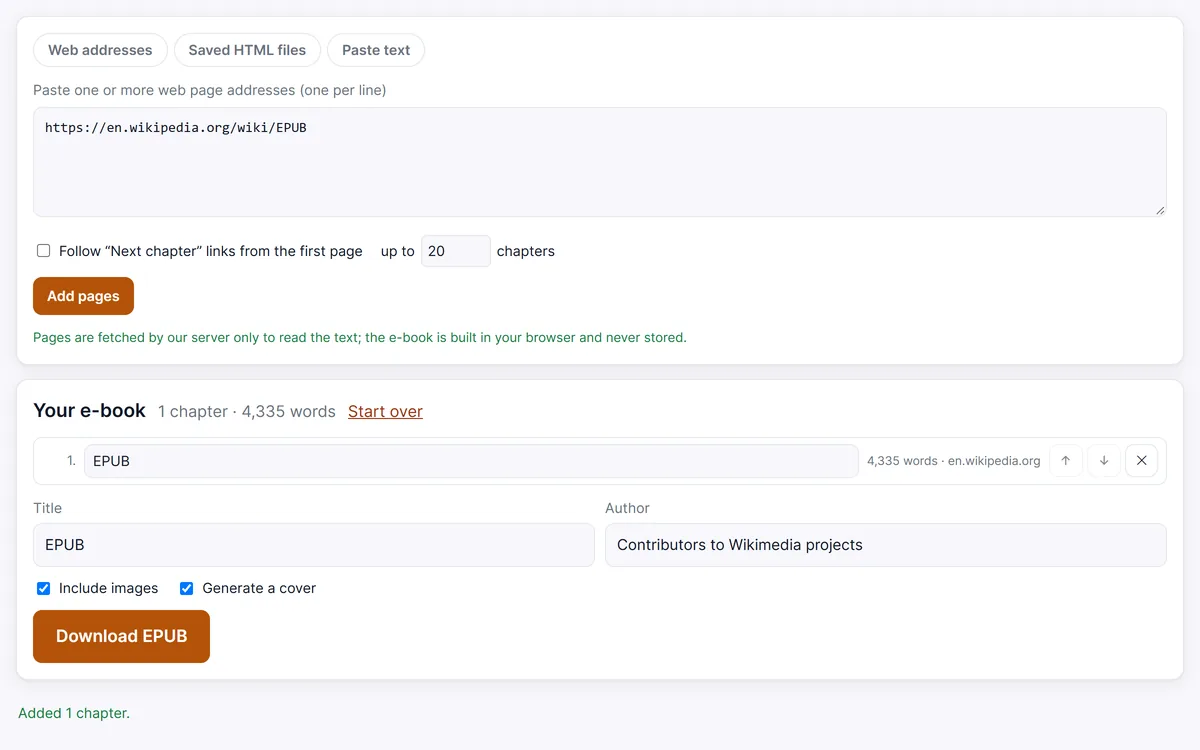
- Paste it into the converter below (or on the Webpage to EPUB page) and click Add pages. Add more addresses, one per line, to collect several articles in one book.
- Check the chapter list, set a title and author, then click Download EPUB.
Step 2: send the EPUB to your Kindle
Pick whichever method suits you; all of them deliver the same file to your Kindle library.
- Send to Kindle website. Open
amazon.com/sendtokindle, sign in with the Amazon account your Kindle is registered to, and drag the EPUB in. Amazon lists a maximum of 200 MB per file, far more than an article book needs. - E-mail. Attach the EPUB to an e-mail and send it to your Kindle's own address (it ends in
@kindle.com). The subject and message can be empty. E-mail is limited to smaller attachments (Amazon has long quoted 50 MB), which is plenty for text. - Apps. The Send to Kindle apps for Windows and Mac and the Kindle app for iPhone and Android (through the share menu) can send files too.
Turn on Wi-Fi on your Kindle and sync; the document usually shows up in the library within a few minutes.
Find your Kindle e-mail address and approve your sender
Amazon only accepts e-mails from addresses you have approved, to keep strangers from filling your Kindle.
- On Amazon, open Manage Your Content and Devices and go to Preferences → Personal Document Settings.
- Note the Send-to-Kindle e-mail address of your device (you can also see it under Devices when you select your Kindle).
- Under Approved Personal Document E-mail List, add the address you will send from.
If nothing arrives, check these three things first: the sender is on the approved list, the file is an EPUB (not MOBI), and you used the device's address rather than your own Amazon login.
What about the Send to Kindle browser extension?
Amazon also has a Send to Kindle extension for Google Chrome that sends the page you are viewing. It's handy for a single article, but it works one page at a time, only in a supported browser, and doesn't work on every site. Making an EPUB first gives you more control: you choose the title, combine a week of reading into one book with a table of contents, keep the images, and get the source address at the end of each chapter.
Pages that can't be fetched
Some pages sit behind a login, a paywall you subscribe to, or bot protection that blocks our server. Save such a page in your browser with Save page as… → Web page, HTML only and convert the file on the HTML to EPUB page — it is read in your browser and the EPUB goes to Send to Kindle the same way. Please keep the e-books for your own reading.
Make an EPUB for your Kindle
Open web pages you saved with Save page as… → Web page, HTML only. Several files become several chapters, sorted by file name.
Pages are fetched by our server only to read the text; the e-book is built in your browser and never stored.
Your e-book
Frequently asked questions
Does Send to Kindle accept EPUB files?
Yes. EPUB is supported on the Send to Kindle website, by e-mail and in the apps, and Amazon converts it for your Kindle. MOBI files are no longer accepted for new documents.
Can I send several articles as one book?
Yes. Paste several addresses into the converter, one per line. Each article becomes a chapter of one EPUB with a table of contents, and you send that single file.
Why didn't my e-mail arrive on the Kindle?
Usually the sender address isn't on your Approved Personal Document E-mail List, the attachment is in a format Amazon no longer accepts, or it was sent to the wrong address. Check the list in Manage Your Content and Devices.
Can I copy the EPUB to my Kindle with a USB cable?
Kindles can't open EPUB files copied over USB. Use Send to Kindle, which converts the EPUB into a format the Kindle reads.